> For the complete documentation index, see [llms.txt](https://docs.rmhpos.com/llms.txt). Markdown versions of documentation pages are available by appending `.md` to page URLs; this page is available as [Markdown](https://docs.rmhpos.com/store-manager/manage-items/use-the-advanced-item-wizard-to-update-items/advanced-item-wizard.md).
# Use the Advanced Item Wizard
This topic describes how to use the Advanced Item Wizard to update item attributes using a range of pre-defined tasks.
You can use the **Advanced Item Wizard** to update item information in the store database.
1. Click **Merchandising**.
2. Click **Advanced Item Wizard**.
3. Click **Next**.
4. From the **Selection Type** drop-down, select one of the following:
* Department
* Category
* Supplier
* Primary Supplier
* Advanced Filter
* Add items manually
5. If you selected **Department**, **Category**, **Supplier**, or **Primary Supplier**, do one of the following:
* Select specific departments, categories, suppliers, or primary suppliers
* Click **All** to select all departments, categories, suppliers, or primary suppliers
6. If you selected **Advanced Filter**:
1. Click **Define**.
2. Use the **Filter** dialog options to identify the items.
3. Click **OK**.
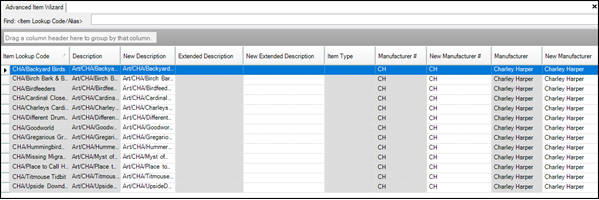
7. Click **Finish**. The selected items are listed.
8. (Optional) Add or remove items. Refer to [**Add or remove items from the grid view**](/store-manager/manage-items/use-the-advanced-item-wizard-to-update-items/advanced-item-wizard-adding-removing.md) for more information.
9. From the **Select Task** drop-down, select a task. Refer to [**Task reference list for the Advanced Item Wizard**](/store-manager/manage-items/use-the-advanced-item-wizard-to-update-items/advanced-item-wizard-tasks.md) for more information.
* Task 110: Change Item Prices
* Task 120: Change Item Price Limits
* Task 130: Change Item Costs
* Task 150: Change Item Quantity
* Task 160: Change Item Restocking Info
* Task 170: Assign Item Sales Tax
* Task 180: Change Item Sales Prices
* Task 200: Make Items Active
* Task 210: Make Items Inactive
* Task 1010: Change "May not be placed on purchase order" value
* Task 1030: Change "Bin Location"
* Task 1040: Change "Buydown Price and Quantity"
* Task 1060: Change "Description"
* Task 1070: Change "Accept food stamps for items" value
* Task 1080: Change "Item is not discountable at POS" value
* Task 1120: Change Department and Category
* Task 1150: Change Item Sub Description 1, 2, 3
* Task 1190: Change "Quantity Entry at POS Not Allowed" value
* Task 1200: Change "Price Must Be Entered at POS" value
* Task 1220: Change "Item is taxable" value
* Task 1230: Change "Item is available on Web Site" value
* Task 1240: Change "Extended Description"
* Task 1260: Change Primary Supplier
* Task 5000: Add Suppliers
* Task 5020: Set Item Discount
* Task 5040: Block Sales
* Task 5050: Change Tag Along Item and Quantity
* Task 5070: Change Parent Item and Quantity
* Task 5090: Change Item Barcode
10. (Optional) Change the layout. Refer to [**Change the grid layout**](/store-manager/manage-items/use-the-advanced-item-wizard-to-update-items/advanced-item-wizard-layout.md) for more information.
11. Update the item information. Refer to [**Update item information**](/store-manager/manage-items/use-the-advanced-item-wizard-to-update-items/advanced-item-wizard-editable-fields.md) for more information.
12. Click **Commit**. A message displays asking if you want to commit the changes to the database.
13. Click **Yes**. A success (or failure) message displays.
14. Click **OK**.
---
# Agent Instructions
This documentation is published with GitBook. GitBook is the documentation platform designed so that both humans and AI agents can read, navigate, and reason over technical content effectively. Learn more at gitbook.com.
## Querying This Documentation
If you need additional information that is not directly available in this page, you can query the documentation by asking a question.
Perform an HTTP GET request on the following URL with the `ask` and `goal` query parameters:
```
GET https://docs.rmhpos.com/store-manager/manage-items/use-the-advanced-item-wizard-to-update-items/advanced-item-wizard.md?ask=&goal=
```
`ask` is the immediate question: it should be specific, self-contained, and written in natural language.
`goal` is what the user is ultimately trying to achieve, the reason they need the answer. Sharing it helps GitBook give you a better, more relevant answer. A goal is most helpful when it describes the outcome the user wants rather than restating the question. For example, with `ask=how do I create an API token`, a goal like `automate deployments from our CI pipeline` lets GitBook tailor the answer to that use case.
The response will contain a direct answer to the question and relevant excerpts and sources from the documentation.
Use this mechanism when the answer is not explicitly present in the current page, you need clarification or additional context, or you want to retrieve related documentation sections.