> For the complete documentation index, see [llms.txt](https://docs.rmhpos.com/llms.txt). Markdown versions of documentation pages are available by appending `.md` to page URLs; this page is available as [Markdown](https://docs.rmhpos.com/store-manager/configure-pos-and-store-manager/people-and-security/setting-up-password-policy.md).
# Password policy
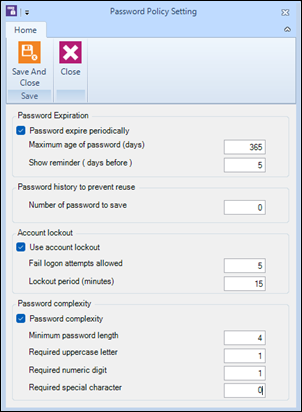
This topic describes how to establish a password policy for the store. The password policy applies to all employees who have a user account for POS, Store Manager, or Store Loyalty.
You can set up a password policy to control how frequently passwords expire, whether to lock accounts after failed login attempts, and to set requirements for password complexity.
{% hint style="success" %}
If cashiers or sales representatives must log on to POS for each transaction, it is best practice to lower the password complexity requirements so these users can create simpler passwords that are easier to enter in POS.
{% endhint %}
1. Click **Setup**.
2. Expand **People & Security**.
3. Click **Password Policy**.
4. If you want passwords to expire:
1. Select **Password expire periodically**.
2. In the **Maximum age of password (days)** field, enter how many days a user can use a password before they are required to change it.
3. In the **Show reminder (days before)** field, enter how many days notice users are given before they are required to change their password.
5. If you want to prevent reuse of passwords, in the **Number of password to save** field, enter how many previous passwords Store Manager will remember for each user.
6. If you want to lock out accounts after failed login attempts:
1. Select **Use account lockout**.
2. In the **Fail logon attempts allowed** field, enter how many failed login attempts are allowed before the user's account is locked.
3. In the **Lockout period (minutes)** field, enter how many minutes the user's account is locked before they can attempt to log in again.
{% hint style="warning" %}
Do not lock accounts for long periods of time. This could prevent employees from entering transactions in POS.
{% endhint %}
7. If you want to set requirements for password complexity:
1. Select **Password complexity**.
2. In the **Minimum password length** field, enter the minimum number of characters required for passwords.
3. Optionally, in the **Required uppercase letter** field, enter the number of uppercase letters (e.g., A, B, C, etc) required in passwords.
4. Optionally, in the **Required numeric digit** field, enter the number of numeric characters (e.g., 1, 2, 3, etc) required in passwords.
5. Optionally, in the **Required special character** field, enter the number of special characters (e.g., !, @, #, etc) required in passwords.
8. Click **Save And Close**.
9. Restart the Store Manager and POS applications to start using the password policy.
---
# Agent Instructions
This documentation is published with GitBook. GitBook is the documentation platform designed so that both humans and AI agents can read, navigate, and reason over technical content effectively. Learn more at gitbook.com.
## Querying This Documentation
If you need additional information that is not directly available in this page, you can query the documentation dynamically by asking a question.
Perform an HTTP GET request on the current page URL with the `ask` query parameter, and the optional `goal` query parameter:
```
GET https://docs.rmhpos.com/store-manager/configure-pos-and-store-manager/people-and-security/setting-up-password-policy.md?ask=&goal=
```
`ask` is the immediate question: it should be specific, self-contained, and written in natural language.
`goal` is optional and describes the broader end goal you are ultimately trying to accomplish on behalf of the user. GitBook uses it to tailor the answer towards what is most useful for that goal.
The response will contain a direct answer to the question and relevant excerpts and sources from the documentation.
Use this mechanism when the answer is not explicitly present in the current page, you need clarification or additional context, or you want to retrieve related documentation sections.