> For the complete documentation index, see [llms.txt](https://docs.rmhpos.com/llms.txt). Markdown versions of documentation pages are available by appending `.md` to page URLs; this page is available as [Markdown](https://docs.rmhpos.com/readme-1/work-with-layaways/layaways-processing.md).
# Process layaway orders
This topic describes how cashiers, salespeople, and floor managers can recall layaway orders and complete pick ups (partial or entire).
If you look up the customer, when you recall the layaway, POS only displays layaways belonging to the selected customer. If you do not look up the customer, when you recall the layaway, POS displays all open layaways and you will have to search for the customer's layaway order.
1. (Optional) Look up the customer. Refer to [**Look up customers**](/readme-1/work-with-customers/customers-looking-up.md) for more information.
2. Tap **Orders** | **Recalls** | **Recall a Layaway**.
3. To select the customer's layaway order, do one of the following:
* Tap the layaway order once and tap **Add**.
* Tap the layaway order twice.
4. If the customer is making a payment:
1. Tap **Orders** | **Payments** | **Payment on Layaway**.
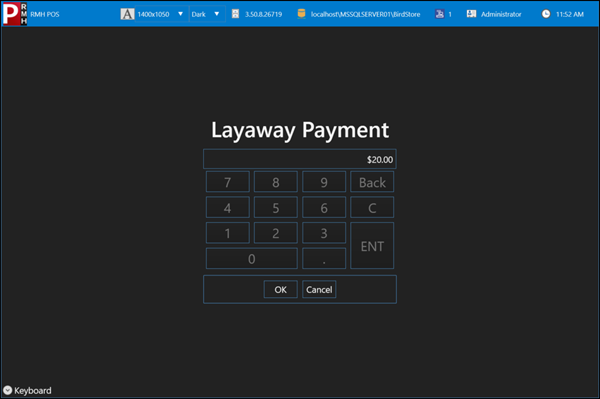
2. On the **Layaway Payment** screen, enter the payment amount.
3. Tap **OK**.
6. If the customer is picking up all or part of their layaway order:
1. Tap **Transaction** | **Tender Sale**. You can also press **F12** or **Enter**.
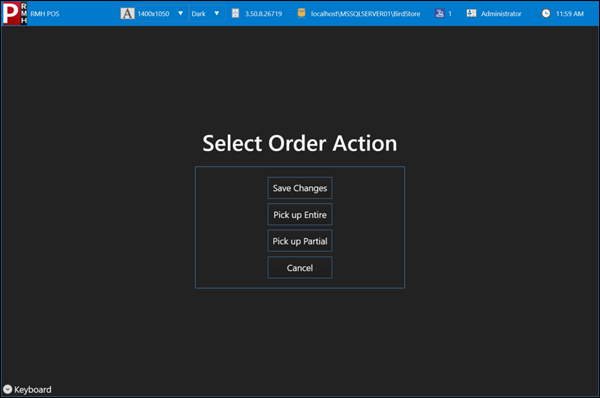
2. From the **Select Order Action** screen, tap one of the following:
* **Pick up Entire**
* **Pick up Partial**
7. If the customer is picking up part of the layaway order:
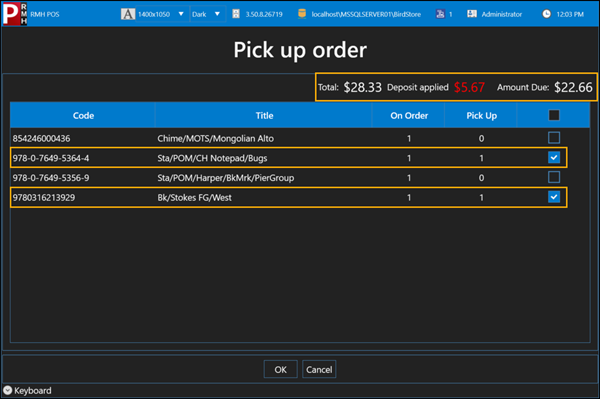
1. Tap the items the customer is picking up to select them.
2. (Optional) In the **Pick Up** column, enter the quantity of the item the customer is picking up.
3. Tap **OK**.
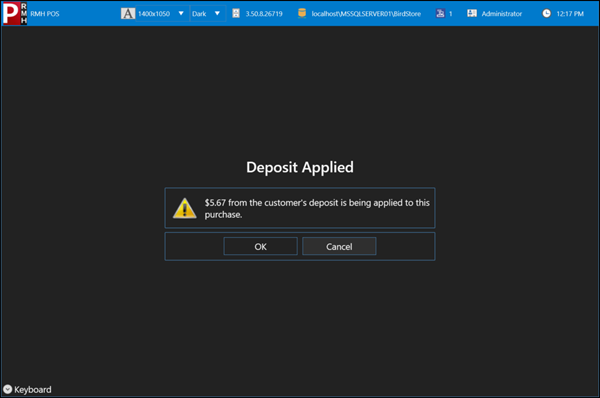
4. If the customer paid a deposit on the layaway order, tap **OK** to confirm the amount of the deposit that is being applied to the pick up.
8. Enter the amount next to the appropriate tender type.
9. Tap **OK**.
10. Tap **Yes** to print the receipt.
---
# Agent Instructions
This documentation is published with GitBook. GitBook is the documentation platform designed so that both humans and AI agents can read, navigate, and reason over technical content effectively. Learn more at gitbook.com.
## Querying This Documentation
If you need additional information that is not directly available in this page, you can query the documentation dynamically by asking a question.
Perform an HTTP GET request on the current page URL with the `ask` query parameter, and the optional `goal` query parameter:
```
GET https://docs.rmhpos.com/readme-1/work-with-layaways/layaways-processing.md?ask=&goal=
```
`ask` is the immediate question: it should be specific, self-contained, and written in natural language.
`goal` is optional and describes the broader end goal you are ultimately trying to accomplish on behalf of the user. GitBook uses it to tailor the answer towards what is most useful for that goal.
The response will contain a direct answer to the question and relevant excerpts and sources from the documentation.
Use this mechanism when the answer is not explicitly present in the current page, you need clarification or additional context, or you want to retrieve related documentation sections.