> For the complete documentation index, see [llms.txt](https://docs.rmhpos.com/llms.txt). Markdown versions of documentation pages are available by appending `.md` to page URLs; this page is available as [Markdown](https://docs.rmhpos.com/es/store-manager/configure-pos-and-store-manager/offline-database/administrator-configuring-offline-db.md).
# Configurar la base de datos sin conexión
Este tema describe cómo configurar la base de datos sin conexión.
1. (Recomendado) Instale Microsoft SQL Server Express en el mismo equipo que POS.
2. Adjunte la base de datos sin conexión vacía **rmhdb.bck**. La base de datos sin conexión suele estar disponible en **C:\Program Files (x86)\Retail Hero\RMH Store Manager\DBFiles**.
3. Inicio **Administrador de la tienda** en el equipo donde está instalado POS. El acceso directo debería estar disponible en el escritorio.
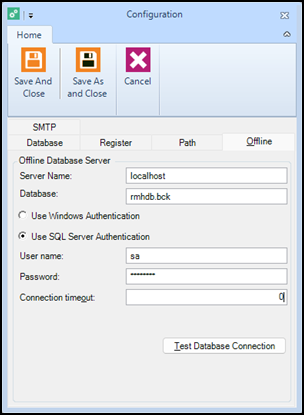
4. Haga clic en **Configuración**.
5. Haga clic en el **Sin conexión** .
6. En el **Nombre del servidor** campo, escriba el nombre del host del equipo donde instaló SQL Server Express, una barra invertida y el nombre de la instancia de SQL Server.
{% hint style="info" %}
Si instaló SQL Server Express en el mismo equipo que POS, puede usar un punto, (local) o localhost como nombre del host. La instancia de SQL Server no puede ser la misma que la instancia de SQL Server para la base de datos de la tienda.
{% endhint %}
7. En el **Base de datos** campo, escriba el nombre de la base de datos sin conexión vacía.
8. Seleccione **Usar la autenticación de SQL Server**.
9. Introduzca el **Nombre de usuario** y **Contraseña**.
10. Haga clic en **Probar la conexión a la base de datos**. Debería ver el mensaje **Base de datos conectada correctamente**.
11. Haga clic en **Guardar y cerrar**.
12. Abrir **POS**.
13. Imprima el **Informe Z** para cerrar el lote en la caja registradora. El informe Z sincroniza los datos de la base de datos de la tienda con la base de datos sin conexión y viceversa.
---
# Agent Instructions
This documentation is published with GitBook. GitBook is the documentation platform designed so that both humans and AI agents can read, navigate, and reason over technical content effectively. Learn more at gitbook.com.
## Querying This Documentation
If you need additional information that is not directly available in this page, you can query the documentation dynamically by asking a question.
Perform an HTTP GET request on the current page URL with the `ask` query parameter, and the optional `goal` query parameter:
```
GET https://docs.rmhpos.com/es/store-manager/configure-pos-and-store-manager/offline-database/administrator-configuring-offline-db.md?ask=&goal=
```
`ask` is the immediate question: it should be specific, self-contained, and written in natural language.
`goal` is optional and describes the broader end goal you are ultimately trying to accomplish on behalf of the user. GitBook uses it to tailor the answer towards what is most useful for that goal.
The response will contain a direct answer to the question and relevant excerpts and sources from the documentation.
Use this mechanism when the answer is not explicitly present in the current page, you need clarification or additional context, or you want to retrieve related documentation sections.