> For the complete documentation index, see [llms.txt](https://docs.rmhpos.com/llms.txt). Markdown versions of documentation pages are available by appending `.md` to page URLs; this page is available as [Markdown](https://docs.rmhpos.com/es/readme-1/work-with-customers/customers-looking-up.md).
# Buscar clientes
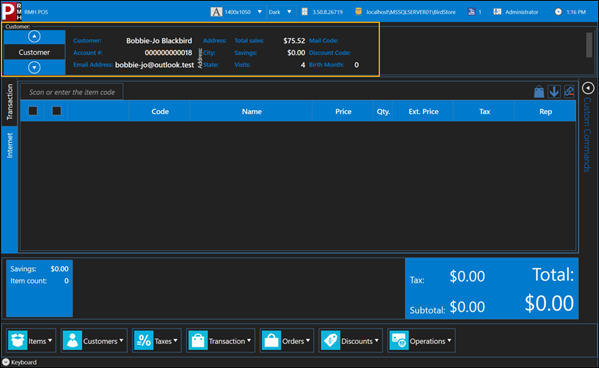
Este tema describe cómo los cajeros y vendedores pueden buscar y seleccionar registros de clientes. También presenta el panel Cliente.
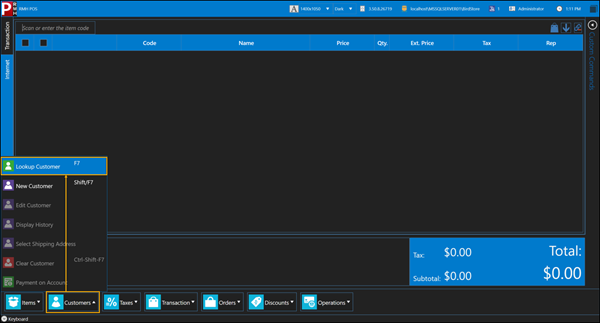
1. Toca **Clientes** | **Buscar cliente**.
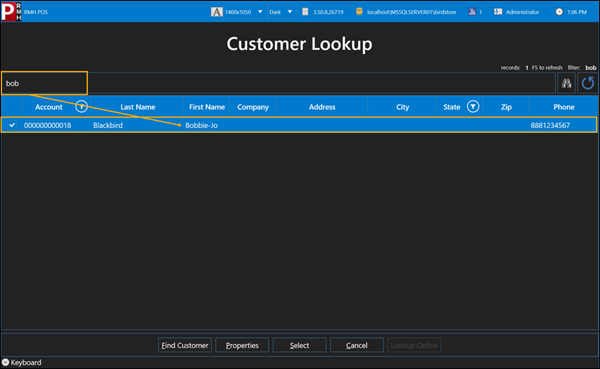
2. Escriba todo o parte del nombre del cliente y pulse **Intro**.
{% hint style="success" %}
Si hay varias maneras de deletrear el nombre de un cliente, puede pedirle que lo deletree o puede intentar introducir parte del nombre. Por ejemplo, si el cliente dice que su nombre es Bobbie-Jo Blackbird, podría intentar introducir solo Bob o Black.
{% endhint %}
3. Para seleccionar al cliente, haga una de las siguientes acciones:
* Toque una vez el nombre del cliente y toque **Seleccione**.
* Toque dos veces el nombre del cliente.
La información del cliente se muestra en el **Cliente** panel en la parte superior de la pantalla del POS.
---
# Agent Instructions
This documentation is published with GitBook. GitBook is the documentation platform designed so that both humans and AI agents can read, navigate, and reason over technical content effectively. Learn more at gitbook.com.
## Querying This Documentation
If you need additional information that is not directly available in this page, you can query the documentation by asking a question.
Perform an HTTP GET request on the following URL with the `ask` and `goal` query parameters:
```
GET https://docs.rmhpos.com/es/readme-1/work-with-customers/customers-looking-up.md?ask=&goal=
```
`ask` is the immediate question: it should be specific, self-contained, and written in natural language.
`goal` is what the user is ultimately trying to achieve, the reason they need the answer. Sharing it helps GitBook give you a better, more relevant answer. A goal is most helpful when it describes the outcome the user wants rather than restating the question. For example, with `ask=how do I create an API token`, a goal like `automate deployments from our CI pipeline` lets GitBook tailor the answer to that use case.
The response will contain a direct answer to the question and relevant excerpts and sources from the documentation.
Use this mechanism when the answer is not explicitly present in the current page, you need clarification or additional context, or you want to retrieve related documentation sections.